> ## Documentation Index
> Fetch the complete documentation index at: https://flexprice-mintlify-9d9353d9.mintlify.site/llms.txt
> Use this file to discover all available pages before exploring further.
# Paddle Connection Setup
> Complete guide to setting up and configuring Paddle connections in Flexprice
## Overview
A Paddle connection in Flexprice stores encrypted credentials that allow the system to interact with your Paddle account for:
* Creating customers and addresses in Paddle
* Syncing subscriptions to Paddle for payment method collection via hosted checkout
* Syncing invoices to Paddle as transactions for automatic charging
* Receiving webhook notifications from Paddle
* Automatic reconciliation of payments between Paddle and Flexprice
## Prerequisites
Before setting up your Paddle connection, ensure you have:
1. **Active Paddle Billing Account** - Sign up at [paddle.com](https://www.paddle.com)
2. **API Key** - Available in your Paddle Dashboard (Developers → Authentication)
3. **Webhook Secret** - Configured in Paddle Dashboard (Developers → Notifications)
4. **Client-Side Token** - For Paddle.js when a Flexprice-hosted checkout page loads with a signed `token` query param (see Step 2); customers saving a card via the subscription API use `paddle_checkout_url` from the [integration workflow](/integrations/paddle/integration-workflow)
5. **Flexprice Environment** - Valid Flexprice environment
6. **Default Payment Link** - Required by Paddle on your seller account; set the Flexprice checkout base URL in Paddle (see Step 2)
7. **Domain Approval** - flexprice.io domain approved in Paddle (see Step 2)
## Step 1: Gather Paddle Credentials
### Required Credentials
| Credential | Location in Paddle Dashboard | Required | Purpose |
| --------------------- | --------------------------------------------- | ----------- | ---------------------------------------------------------------------------- |
| **API Key** | Developers → Authentication | ✅ | API authentication |
| **Webhook Secret** | Developers → Notifications → \[Your Endpoint] | ✅ | Webhook signature verification |
| **Client-Side Token** | Developers → Authentication | ✅ | Paddle.js on hosted checkout when the URL includes Flexprice’s `token` param |
| **Redirect URL** | Connection metadata (not Paddle) | Recommended | Success URL after payment |
### Finding Your Credentials
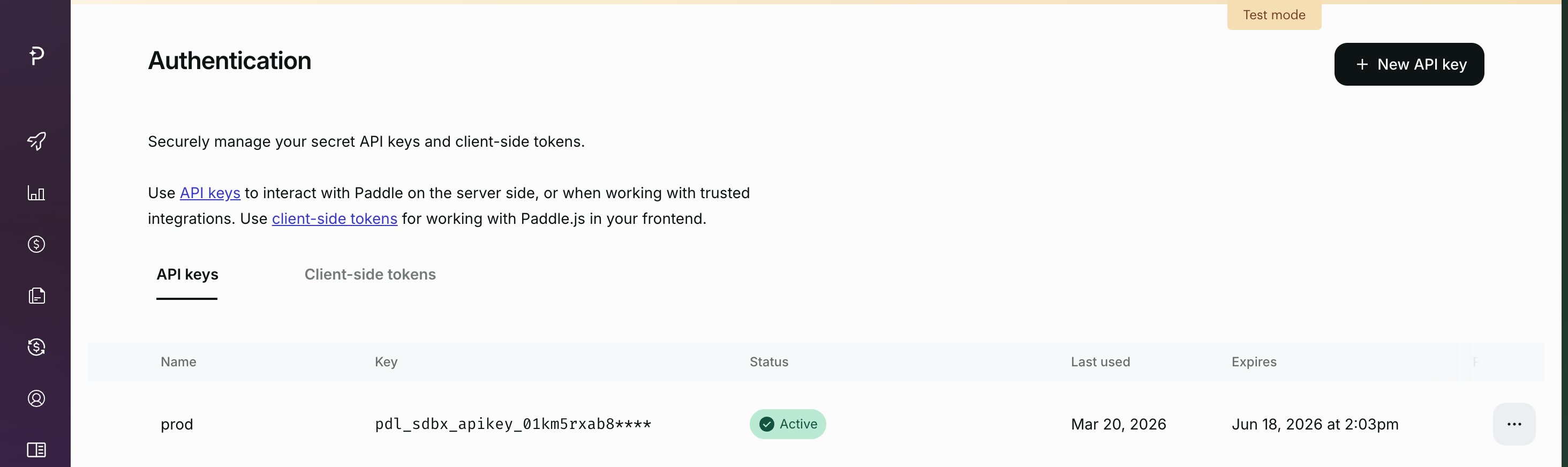
1. **API Key:**
* Go to Paddle Dashboard → Developers → Authentication
* Copy your API key (use `pdl_sdbx_` prefix for sandbox, live prefix for production)
2. **Webhook Secret:**
* Go to Paddle Dashboard → Developers → Notifications
* Create or select your webhook endpoint
* Copy the webhook secret (used for signature verification)
3. **Client-Side Token:**
* Go to Paddle Dashboard → Developers → Authentication
* Copy the client-side token (e.g. `test_xxx` or `live_xxx`) for Paddle.js
 ## Step 2: Configure Paddle Checkout & Webhooks
### Default Payment Link
Paddle requires a default payment link on your seller account to create transactions. Flexprice still relies on this as part of the integration.
**Card capture for subscriptions:** In the current integration, you usually send customers the **`paddle_checkout_url`** returned when you create a Flexprice subscription (see [Paddle Integration Workflow](/integrations/paddle/integration-workflow)). The steps below configure Paddle’s **required** default payment link and domain — they do not replace sharing that API-provided checkout URL.
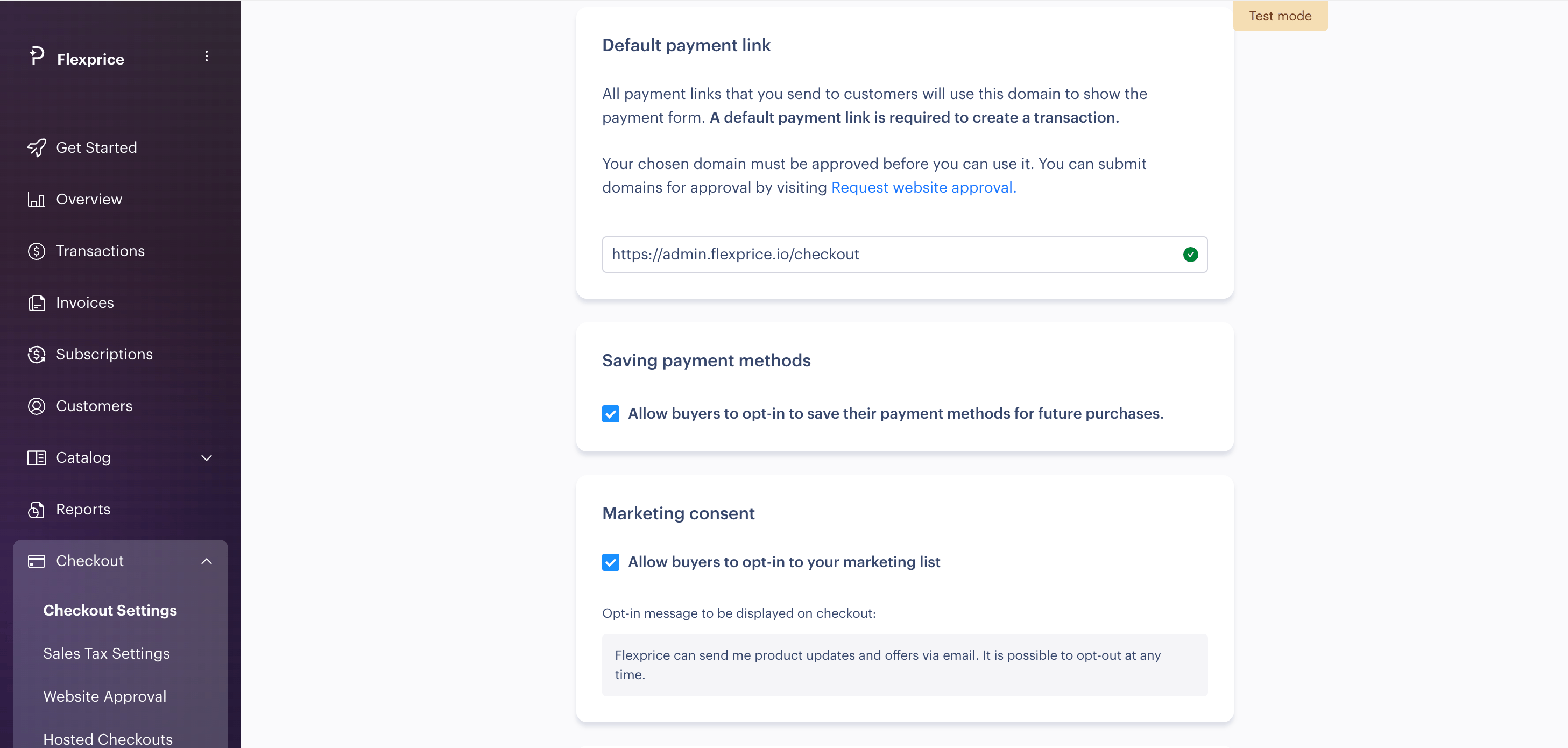
1. Go to Paddle Dashboard → Checkout → Checkout settings
2. Set **Default payment link** to: `https://admin.flexprice.io/checkout`
3. Submit your domain for approval via **Request website approval** if not already approved
## Step 2: Configure Paddle Checkout & Webhooks
### Default Payment Link
Paddle requires a default payment link on your seller account to create transactions. Flexprice still relies on this as part of the integration.
**Card capture for subscriptions:** In the current integration, you usually send customers the **`paddle_checkout_url`** returned when you create a Flexprice subscription (see [Paddle Integration Workflow](/integrations/paddle/integration-workflow)). The steps below configure Paddle’s **required** default payment link and domain — they do not replace sharing that API-provided checkout URL.
1. Go to Paddle Dashboard → Checkout → Checkout settings
2. Set **Default payment link** to: `https://admin.flexprice.io/checkout`
3. Submit your domain for approval via **Request website approval** if not already approved
 ### Website Approval
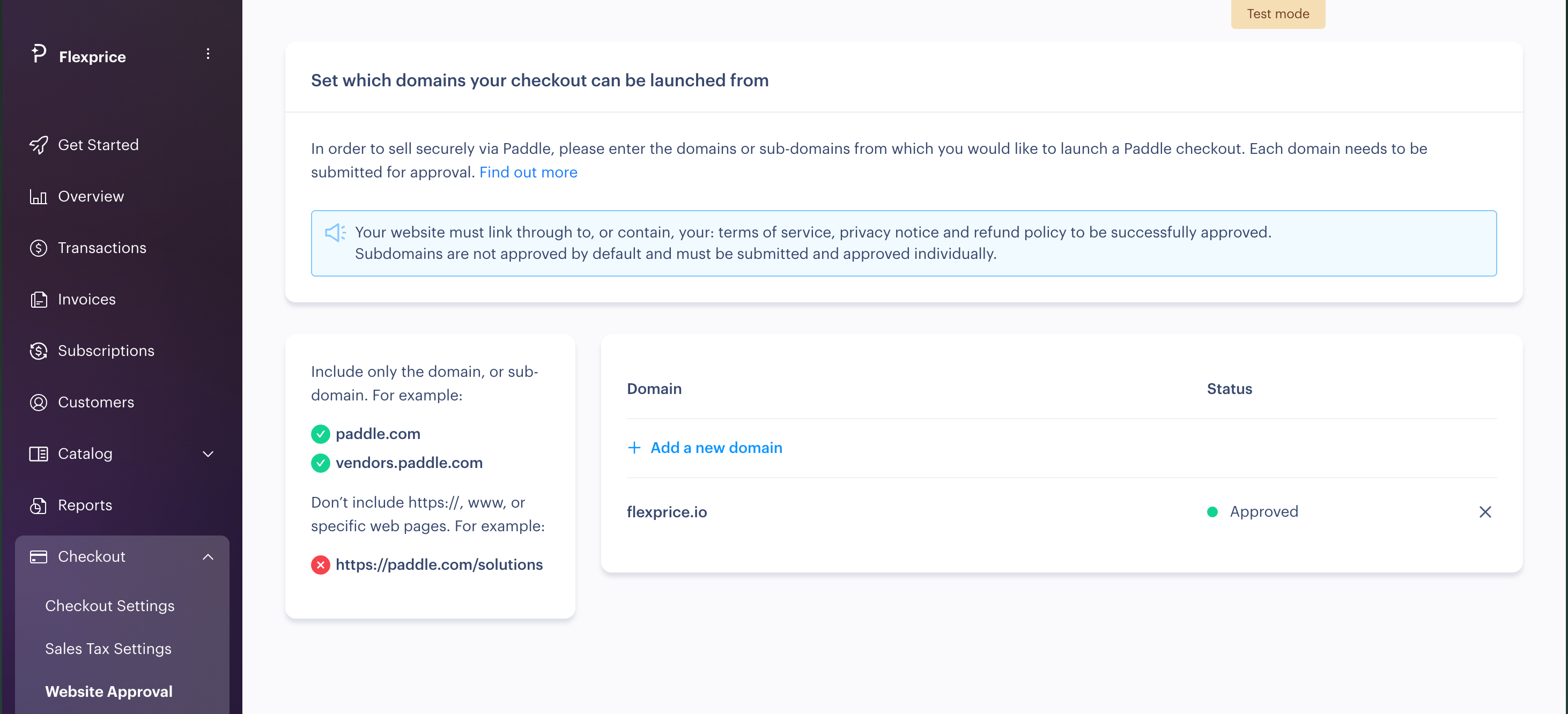
Your domain must be approved before checkout works in production.
1. Go to Paddle Dashboard → Checkout → Request website approval
2. Add and approve the flexprice.io domain (or your production domain)
### Website Approval
Your domain must be approved before checkout works in production.
1. Go to Paddle Dashboard → Checkout → Request website approval
2. Add and approve the flexprice.io domain (or your production domain)
 ### Setting Up the Webhook
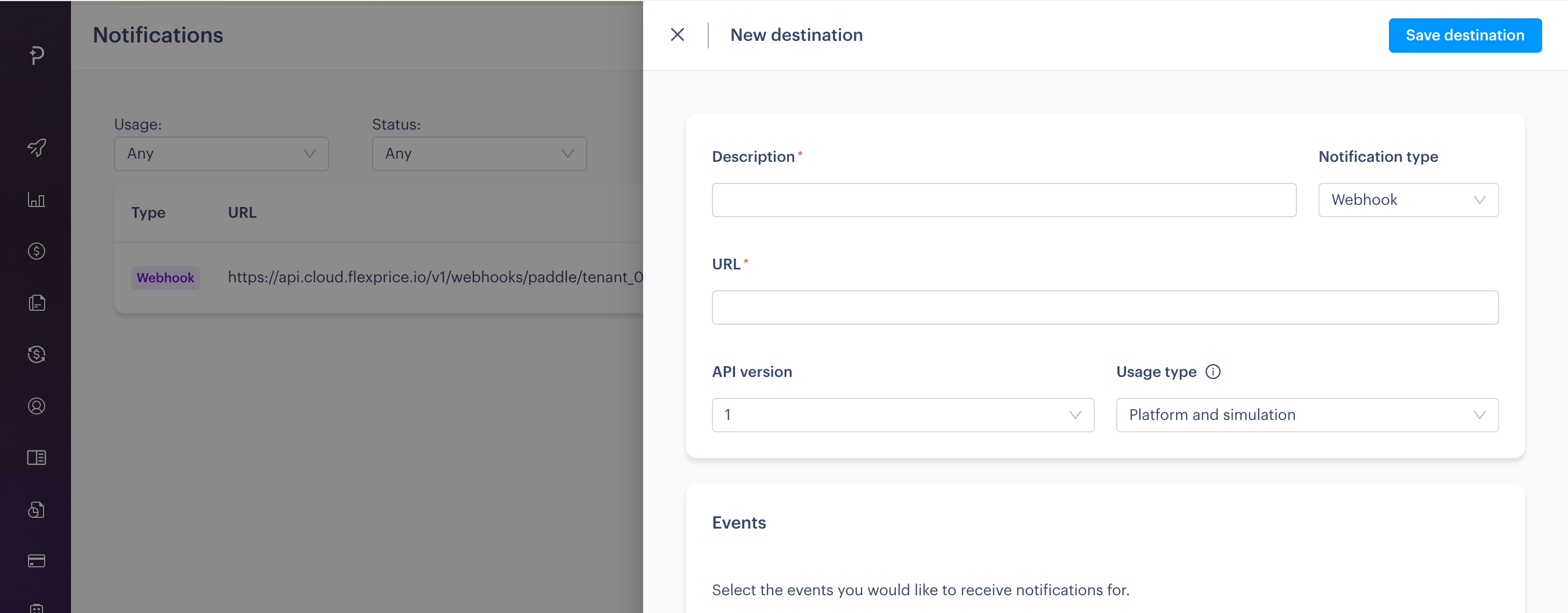
1. Go to Paddle Dashboard → Developers → Notifications
2. Click **Add notification destination**
3. Enter your webhook URL (see format below)
4. Select the required events listed below
5. Copy the **Webhook Secret** for your connection
**Webhook URL Format:**
```
https://api.cloud.flexprice.io/v1/webhooks/paddle/tenant_01K1TJDVNSN7TWY8CZY870QMNV/env_01K1TJJF0CJR410C6QVPYQTNV0
```
*(Replace `tenant_01K1TJDVNSN7TWY8CZY870QMNV` and `env_01K1TJJF0CJR410C6QVPYQTNV0` with your tenant and environment IDs. If you use a different Flexprice region, use the base URL for your region instead of `https://api.cloud.flexprice.io`.)*
**Required Webhook Events** – Configure these events in your Paddle webhook endpoint:
| Event Type | Purpose |
| ------------------------ | ------------------------------------------------------------- |
| `transaction.completed` | Reconcile invoice payments when Paddle charges the saved card |
| `subscription.activated` | Detect when a customer has saved their payment method |
### Setting Up the Webhook
1. Go to Paddle Dashboard → Developers → Notifications
2. Click **Add notification destination**
3. Enter your webhook URL (see format below)
4. Select the required events listed below
5. Copy the **Webhook Secret** for your connection
**Webhook URL Format:**
```
https://api.cloud.flexprice.io/v1/webhooks/paddle/tenant_01K1TJDVNSN7TWY8CZY870QMNV/env_01K1TJJF0CJR410C6QVPYQTNV0
```
*(Replace `tenant_01K1TJDVNSN7TWY8CZY870QMNV` and `env_01K1TJJF0CJR410C6QVPYQTNV0` with your tenant and environment IDs. If you use a different Flexprice region, use the base URL for your region instead of `https://api.cloud.flexprice.io`.)*
**Required Webhook Events** – Configure these events in your Paddle webhook endpoint:
| Event Type | Purpose |
| ------------------------ | ------------------------------------------------------------- |
| `transaction.completed` | Reconcile invoice payments when Paddle charges the saved card |
| `subscription.activated` | Detect when a customer has saved their payment method |
 ## Step 3: Create Paddle Connection
### Using Flexprice Dashboard
You can create a Paddle connection directly from the Flexprice dashboard:
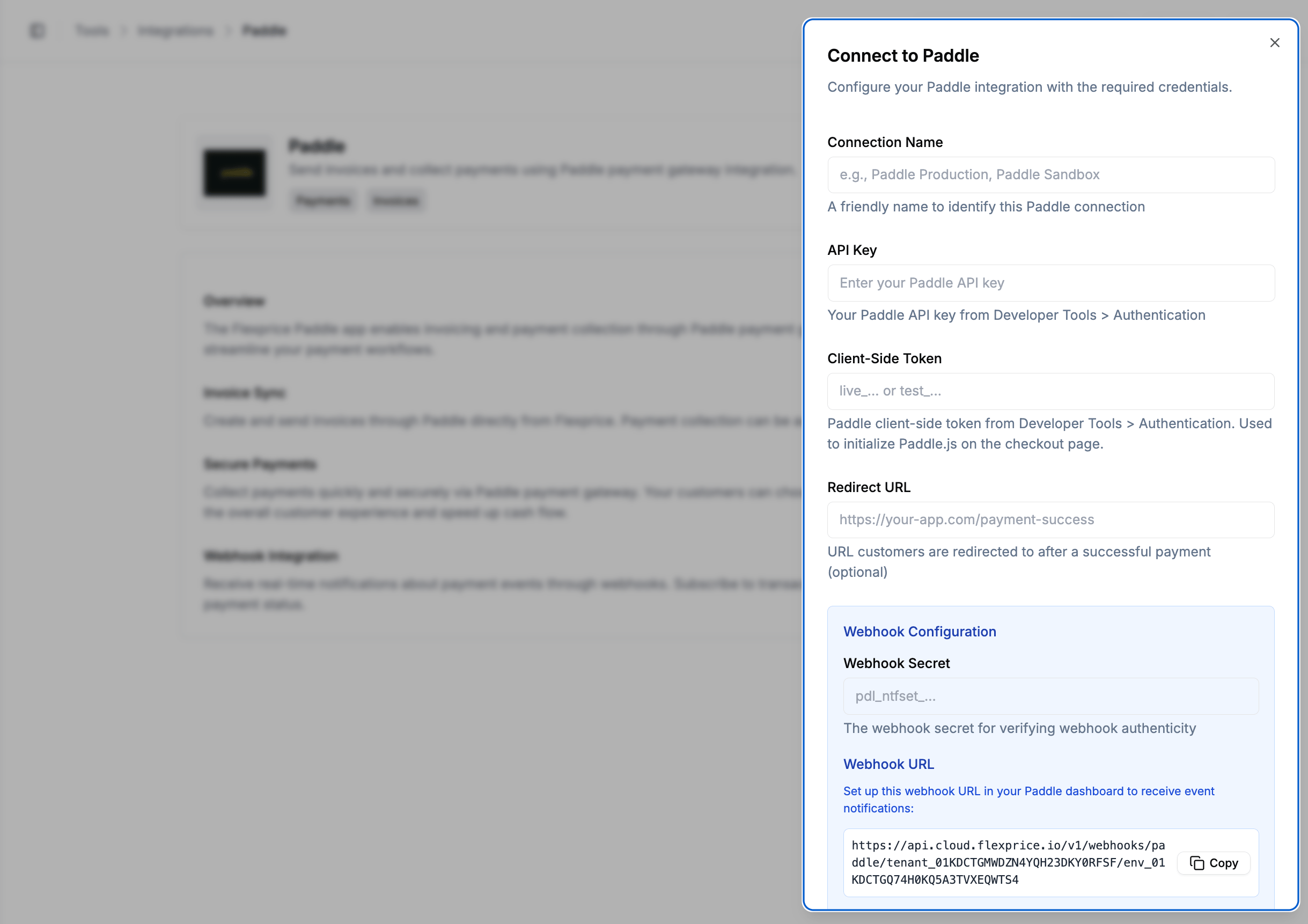
Go to **Flexprice dashboard** → **Integrations** → **Paddle** → **Add a connection**.
Enter your API Key, Webhook Secret, and Client-Side Token (recommended). Optionally add a Redirect URL in metadata for post-payment redirects.
Click to create the connection. Flexprice will store your credentials securely.
## Step 3: Create Paddle Connection
### Using Flexprice Dashboard
You can create a Paddle connection directly from the Flexprice dashboard:
Go to **Flexprice dashboard** → **Integrations** → **Paddle** → **Add a connection**.
Enter your API Key, Webhook Secret, and Client-Side Token (recommended). Optionally add a Redirect URL in metadata for post-payment redirects.
Click to create the connection. Flexprice will store your credentials securely.
 ```json theme={null}
{
"name": "Paddle Production",
"provider_type": "paddle",
"encrypted_secret_data": {
"api_key": "pdl_live_...",
"webhook_secret": "...",
"client_side_token": "live_..."
},
"metadata": {
"redirect_url": "https://your-app.com/billing/success"
}
}
```
## Subscriptions, invoices, and Paddle
1. **Subscription setup:** When you create a Flexprice subscription, Flexprice creates a matching Paddle subscription and returns checkout metadata so the customer can save a payment method. See [Paddle Integration Workflow](/integrations/paddle/integration-workflow) for the full flow (`paddle_checkout_url`, `subscription.activated`, card capture, and **customer/address sync**).
2. **Invoicing:** Flexprice syncs each invoice to Paddle as a transaction. Paddle charges the saved payment method automatically; `transaction.completed` reconciles the invoice in Flexprice.
3. **Tax:** If Paddle adds tax on top of the invoice amount and the charged total exceeds the invoice total, Flexprice may mark the invoice as **overpaid** — align tax mode (internal vs. external) in Paddle with your pricing setup.
## Security Best Practices
### Credential Management
1. **Environment Separation**: Use sandbox keys (`pdl_sdbx_`) for development
2. **Key Rotation**: Regularly rotate your Paddle API keys
3. **Encryption**: All credentials are encrypted at rest in Flexprice
### Webhook Security
1. **HTTPS Only**: Always use HTTPS for webhook endpoints
2. **Signature Verification**: Flexprice verifies all webhook signatures
3. **Secret Management**: Keep webhook secrets secure and rotate regularly
## Troubleshooting
| Issue | Cause | Solution |
| ------------------------------------------------------------------------- | ------------------------------------------------------------------------------------------------ | ---------------------------------------------------------------------------------------------------------------------------------------------------------------------------------------------------------------------------------------------------------------------- |
| No `paddle_checkout_url` in subscription metadata | Subscription not linked to Paddle or no active connection | Confirm an active Paddle connection under **Integrations → Paddle**; follow [Paddle Integration Workflow](/integrations/paddle/integration-workflow) |
| Invoice sync fails – "Paddle address ID not found" | Customer missing country or address not synced | Add country to customer address; ensure address has valid country code |
| Connection test fails | Invalid API keys | Verify keys in Paddle Dashboard |
| Webhook not received (`transaction.completed` / `subscription.activated`) | Incorrect webhook URL or required events not selected | Check URL format; in Paddle → Developers → Notifications, select both required events |
| Paddle.js won’t load or hosted checkout page errors | Missing **Client-Side Token** on the connection, or the URL lost Flexprice’s `token` query param | Add **Client-Side Token** in the connection. For subscriptions, customers should open **`paddle_checkout_url`** from the API ([workflow](/integrations/paddle/integration-workflow)). For other Flexprice-hosted checkout links, keep the `token` param for Paddle.js. |
| Invoice marked overpaid | Paddle added tax on top of invoice amount | Align tax mode (internal vs external) in Paddle with your invoice pricing |
## Next Steps
After setting up your Paddle connection:
1. **Follow the Integration Workflow**: See the [Paddle Integration Workflow](/integrations/paddle/integration-workflow) for the complete end-to-end guide — subscription creation, customer checkout, and invoice auto-charge.
2. **Test in Sandbox**: Use `pdl_sdbx_` keys and Paddle's sandbox environment before going live.
3. **Monitor Webhooks**: Ensure `transaction.completed` and `subscription.activated` events are being received.
For detailed API documentation, see the [API Reference](/api-reference/introduction).
```json theme={null}
{
"name": "Paddle Production",
"provider_type": "paddle",
"encrypted_secret_data": {
"api_key": "pdl_live_...",
"webhook_secret": "...",
"client_side_token": "live_..."
},
"metadata": {
"redirect_url": "https://your-app.com/billing/success"
}
}
```
## Subscriptions, invoices, and Paddle
1. **Subscription setup:** When you create a Flexprice subscription, Flexprice creates a matching Paddle subscription and returns checkout metadata so the customer can save a payment method. See [Paddle Integration Workflow](/integrations/paddle/integration-workflow) for the full flow (`paddle_checkout_url`, `subscription.activated`, card capture, and **customer/address sync**).
2. **Invoicing:** Flexprice syncs each invoice to Paddle as a transaction. Paddle charges the saved payment method automatically; `transaction.completed` reconciles the invoice in Flexprice.
3. **Tax:** If Paddle adds tax on top of the invoice amount and the charged total exceeds the invoice total, Flexprice may mark the invoice as **overpaid** — align tax mode (internal vs. external) in Paddle with your pricing setup.
## Security Best Practices
### Credential Management
1. **Environment Separation**: Use sandbox keys (`pdl_sdbx_`) for development
2. **Key Rotation**: Regularly rotate your Paddle API keys
3. **Encryption**: All credentials are encrypted at rest in Flexprice
### Webhook Security
1. **HTTPS Only**: Always use HTTPS for webhook endpoints
2. **Signature Verification**: Flexprice verifies all webhook signatures
3. **Secret Management**: Keep webhook secrets secure and rotate regularly
## Troubleshooting
| Issue | Cause | Solution |
| ------------------------------------------------------------------------- | ------------------------------------------------------------------------------------------------ | ---------------------------------------------------------------------------------------------------------------------------------------------------------------------------------------------------------------------------------------------------------------------- |
| No `paddle_checkout_url` in subscription metadata | Subscription not linked to Paddle or no active connection | Confirm an active Paddle connection under **Integrations → Paddle**; follow [Paddle Integration Workflow](/integrations/paddle/integration-workflow) |
| Invoice sync fails – "Paddle address ID not found" | Customer missing country or address not synced | Add country to customer address; ensure address has valid country code |
| Connection test fails | Invalid API keys | Verify keys in Paddle Dashboard |
| Webhook not received (`transaction.completed` / `subscription.activated`) | Incorrect webhook URL or required events not selected | Check URL format; in Paddle → Developers → Notifications, select both required events |
| Paddle.js won’t load or hosted checkout page errors | Missing **Client-Side Token** on the connection, or the URL lost Flexprice’s `token` query param | Add **Client-Side Token** in the connection. For subscriptions, customers should open **`paddle_checkout_url`** from the API ([workflow](/integrations/paddle/integration-workflow)). For other Flexprice-hosted checkout links, keep the `token` param for Paddle.js. |
| Invoice marked overpaid | Paddle added tax on top of invoice amount | Align tax mode (internal vs external) in Paddle with your invoice pricing |
## Next Steps
After setting up your Paddle connection:
1. **Follow the Integration Workflow**: See the [Paddle Integration Workflow](/integrations/paddle/integration-workflow) for the complete end-to-end guide — subscription creation, customer checkout, and invoice auto-charge.
2. **Test in Sandbox**: Use `pdl_sdbx_` keys and Paddle's sandbox environment before going live.
3. **Monitor Webhooks**: Ensure `transaction.completed` and `subscription.activated` events are being received.
For detailed API documentation, see the [API Reference](/api-reference/introduction).